The edit–play loop
On this page
Most of making a game is the second draft: a line that reads wrong, a fight that is too hard. Gozen keeps the game running while you fix it, and keeps a record of what you saw so you can come back to it.
Every option on this page belongs to the game binary, not to gozen. Any game started with play.Main has them, including your own; the examples use go run . in your game’s module.
Turn on the author tools #
go run . --dev --dir game --memos notes
| Option | Why |
|---|---|
--dev | Turns on the keys and options below. Players never need it. |
--dir game | Reads the YAML and pictures from disk instead of the embedded copy, so edits can be reloaded. |
--memos notes | Lets F9 write notes into notes/. |
Runs with --dev that start somewhere other than the beginning (--start, --script, --replay) use a temporary save directory unless you pass --save-dir, so testing never touches a player’s saves.
Keys #
| Key | With --dev |
|---|---|
| F5 | Reload the definitions. The game keeps your place: the location, the party, and the current line of an event. |
| F6 | Open or close the character book, with every page open: each character’s profile, faces and relations (profiles). |
| F7 | Show or hide the balance panel: win rates of the battles at this place. |
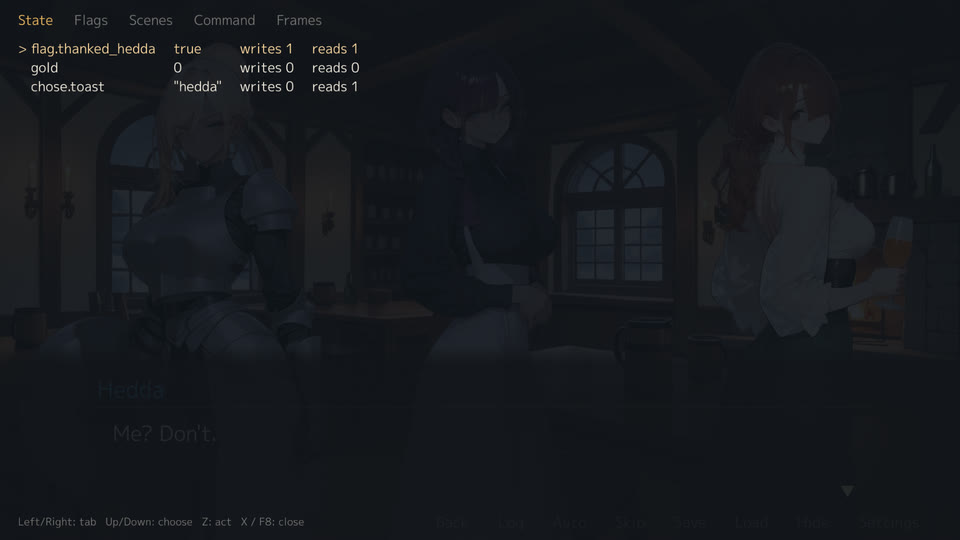
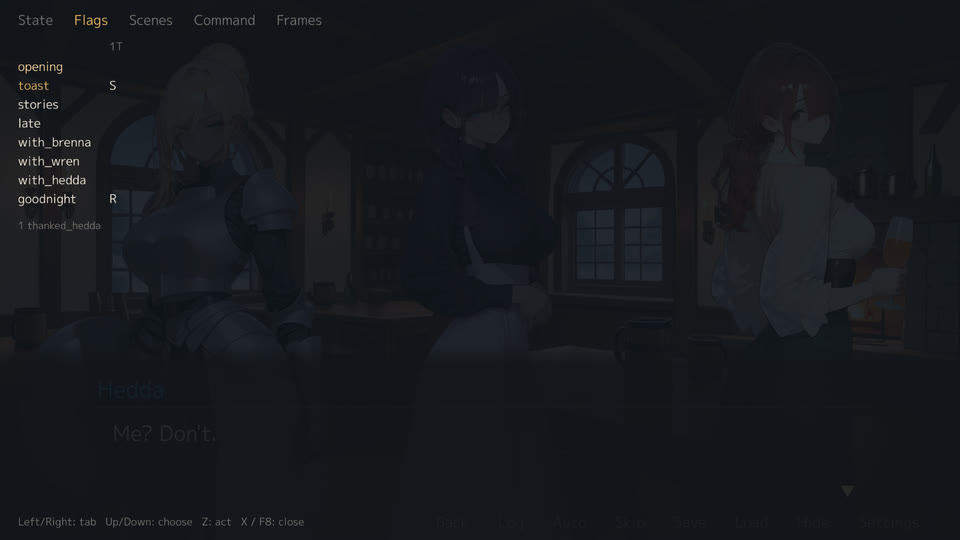
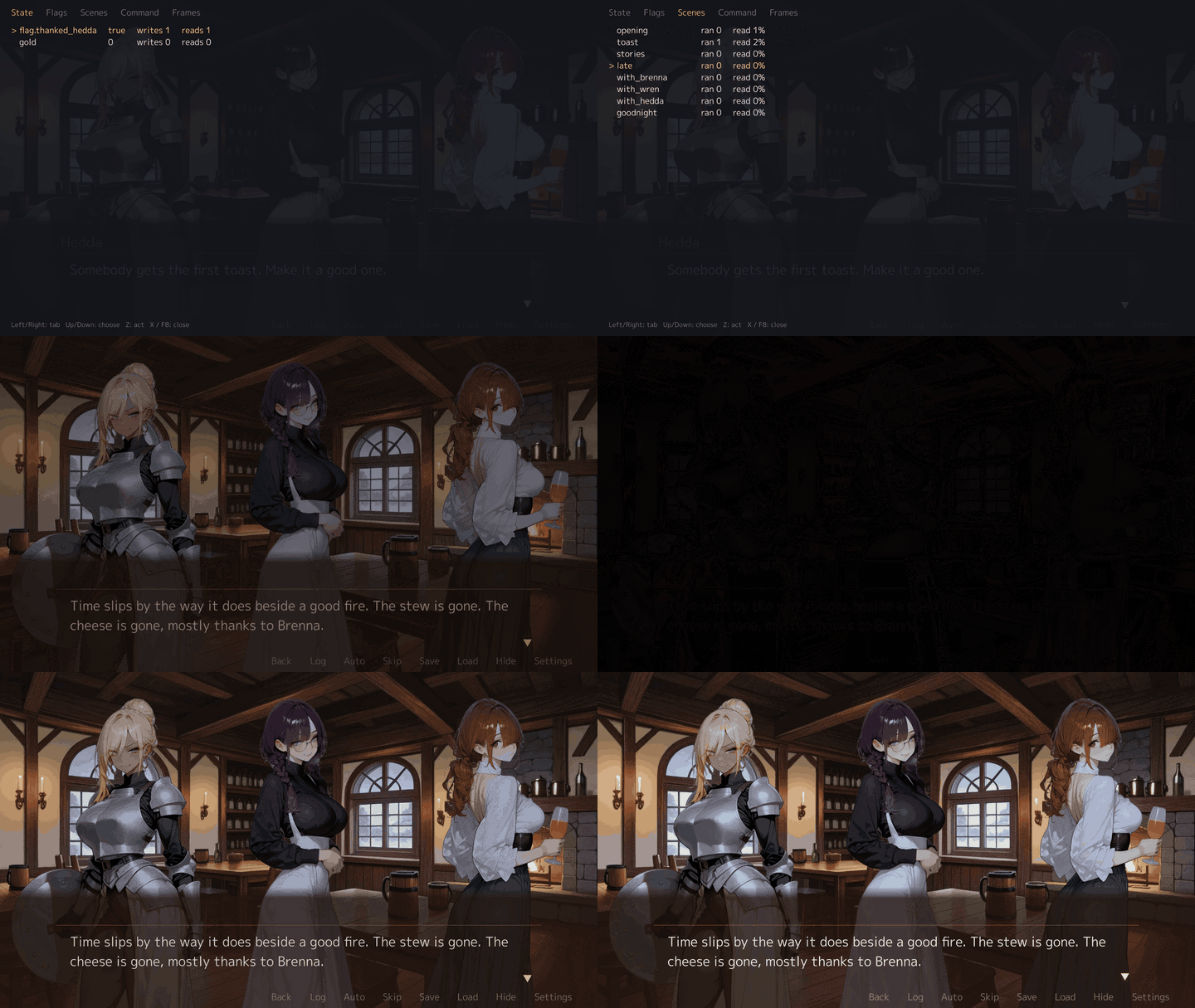
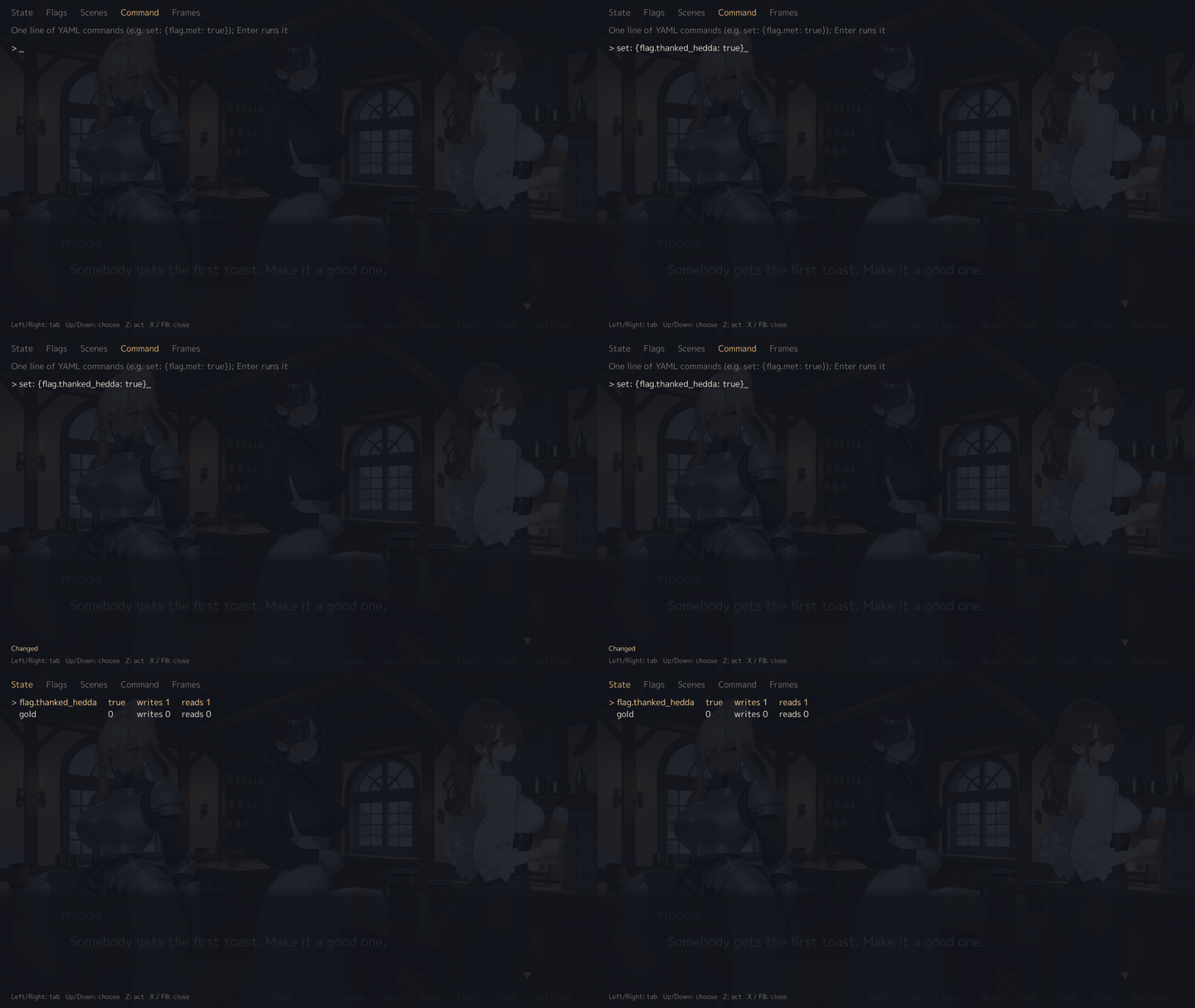
| F8 | Open or close the development panel: the state (flip a flag, step a number), a table of the flags each event sets and reads, the events to jump to with their read rates, a line of YAML to run, and the frame meter (ticks and frames a second, the longest and average Update and Draw). |
| F9 | Write a note: a screenshot, the game state and your comment. |
| F10 | Tag the picture on screen, when picture review is on. |
The usual keys still work: O or F2 for settings, F11 for full screen, M to mute. In conversations, Q rolls back a line, Ctrl held passes the lines read, N turns skip mode on and off, and Page Down skips a scene whose lines were all read (novel games); a script presses them with press back, press skip and press scene_skip, and the novel band’s save and load with press save and press load.
F8: the development panel #
| State: flip a flag, step a number | Flags: what each event sets and reads |
|---|---|
 |  |
| Scenes: jump to an event | Command: run a line of YAML |
 |  |
| Frames: ticks and frames a second, the slowest Update and Draw | |
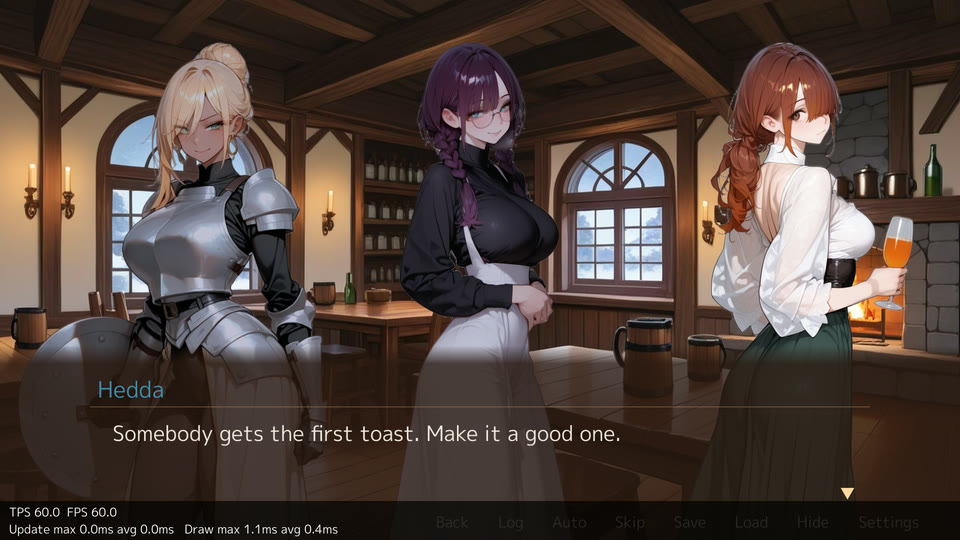 |
The panel holds the game while it is open; left and right change its tab. Every change it makes goes through set or starts an event, the same as a headless test’s Do, and the trace records it: dev_set for a change, jump for a jump, dev_do for a command. A script does the same with jump EVENT [LINE] (start an event from the state as it is, read on to the line) and do YAML (run a line of commands, such as do - set: {flag.met: true}). The Frames tab hides the panel and leaves the frame meter, and the game goes on until F8 closes it. The flags table and gozen book’s Flow section come from one index of where each name is written and read.
F6: the character book #
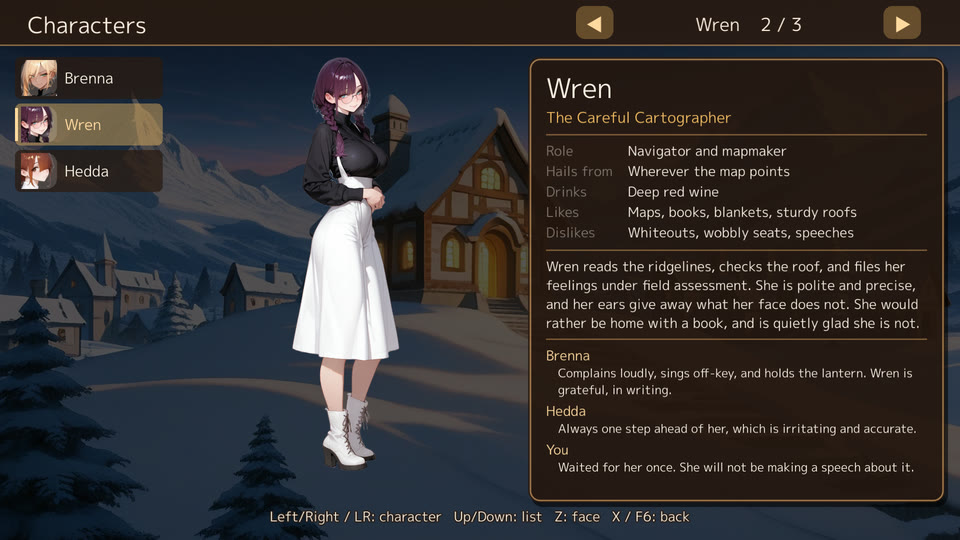
The book shows each character of profiles with the standing picture, the faces to switch between (Z), the fields, the introduction and how they see the others. Under --dev every page is open, so you can check a line you write against the character. Left and right, L and R of a pad, the arrows on the band and a swipe go to the next character; X or F6 closes it.
F5: reload #
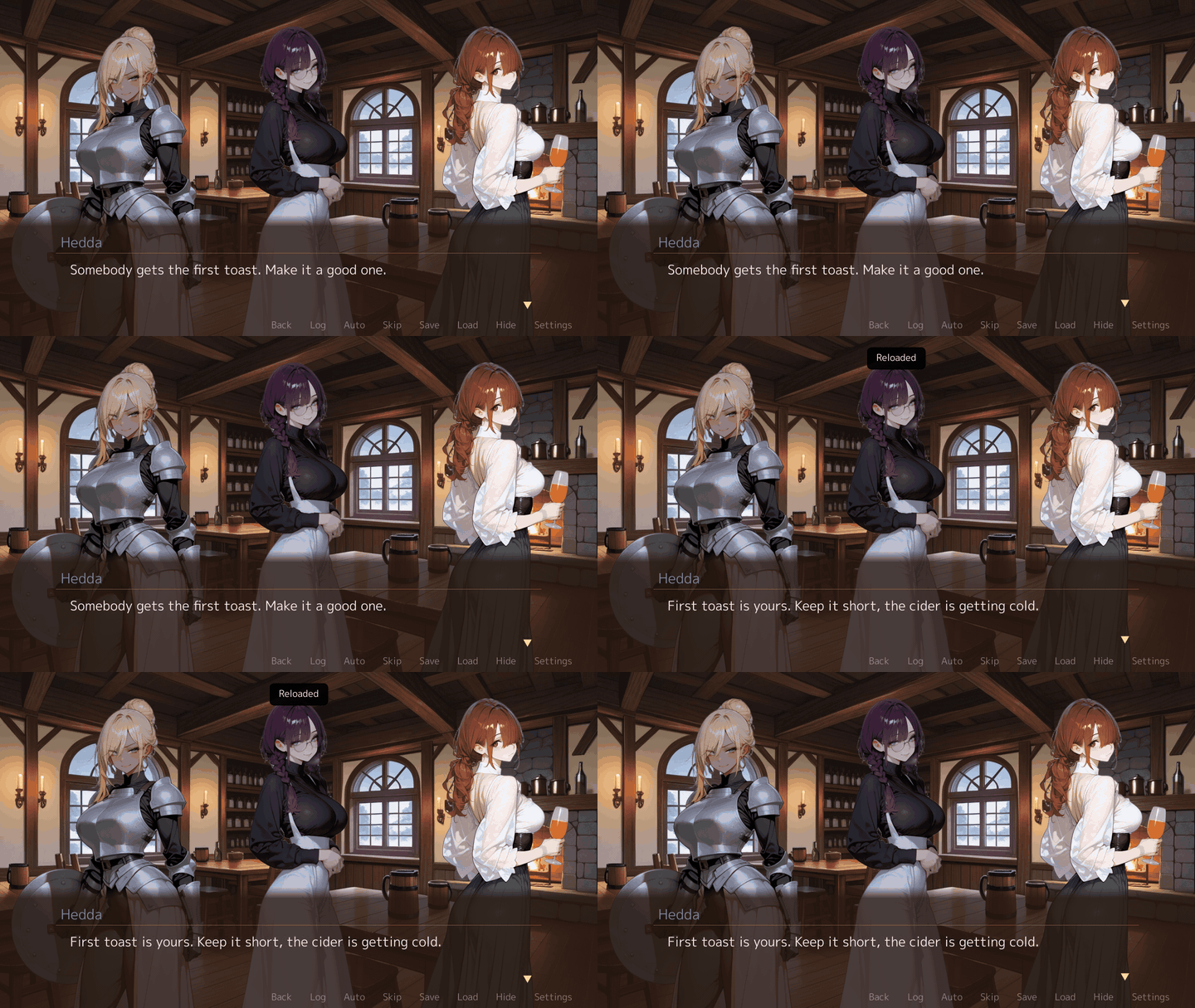
With --dir, the game watches game.yaml, data/ and assets/. Pictures and sounds are reloaded on their own. For definitions, press F5: the game loads them, checks them, and swaps them in. The field menu, the settings, the gallery and the character book are rebuilt with the new definitions at once and stay open. In a battle the reload waits until the battle ends, and on another screen, such as a shop or the save screen, until you close it.
If the edit has an error, the game keeps the old definitions and shows the error with its file and line, so a typo never ends the session. Changing the game id or lowering data_version cannot be reloaded; restart the game for those.
F7: balance panel #
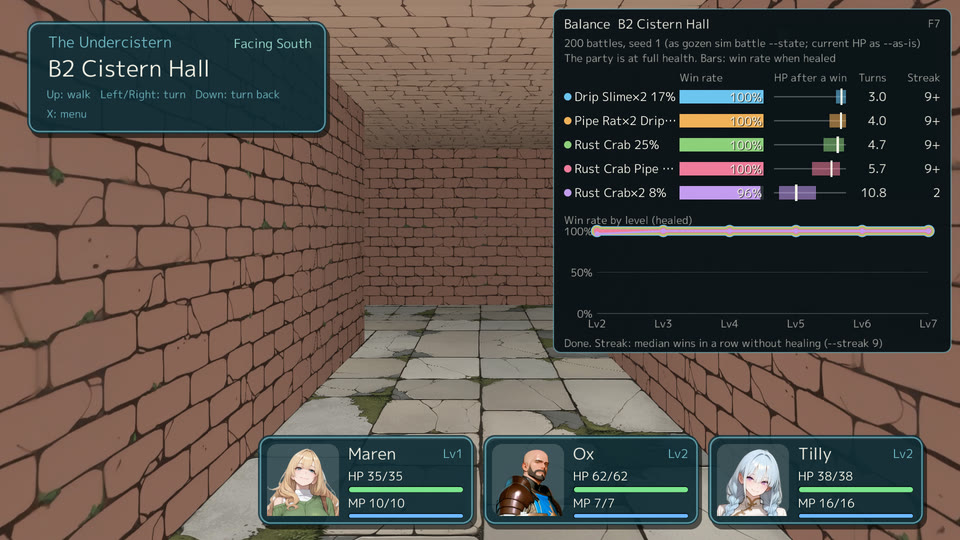
For each troop you can meet here (random encounters and battle actions, up to six), the panel shows:
- the win rate, from 200 AUTO battles with the party fully healed;
- the HP left after a win, as a band from the 10th to the 90th percentile with the median;
- the average number of turns;
- when someone is hurt or has a state, a second, darker row: the same battles from the party’s current HP, MP and states;
- the wins in a row from the current HP without rest (up to 9);
- the win rate at each level from the current one to five above.
These are the same numbers gozen sim battle prints, with the same seed, so you can check them in a terminal. A note’s .save file is the party at that moment:
gozen sim battle game crab --state notes/2026-10-19/001.save --hp
gozen sim battle game crab --state notes/2026-10-19/001.save --as-is --streak 9
The panel measures a little each frame (at most 3 ms) and never changes the game state or its random numbers. It measures again when you move, reload, or change the party’s level, equipment or skills.
F9: notes #
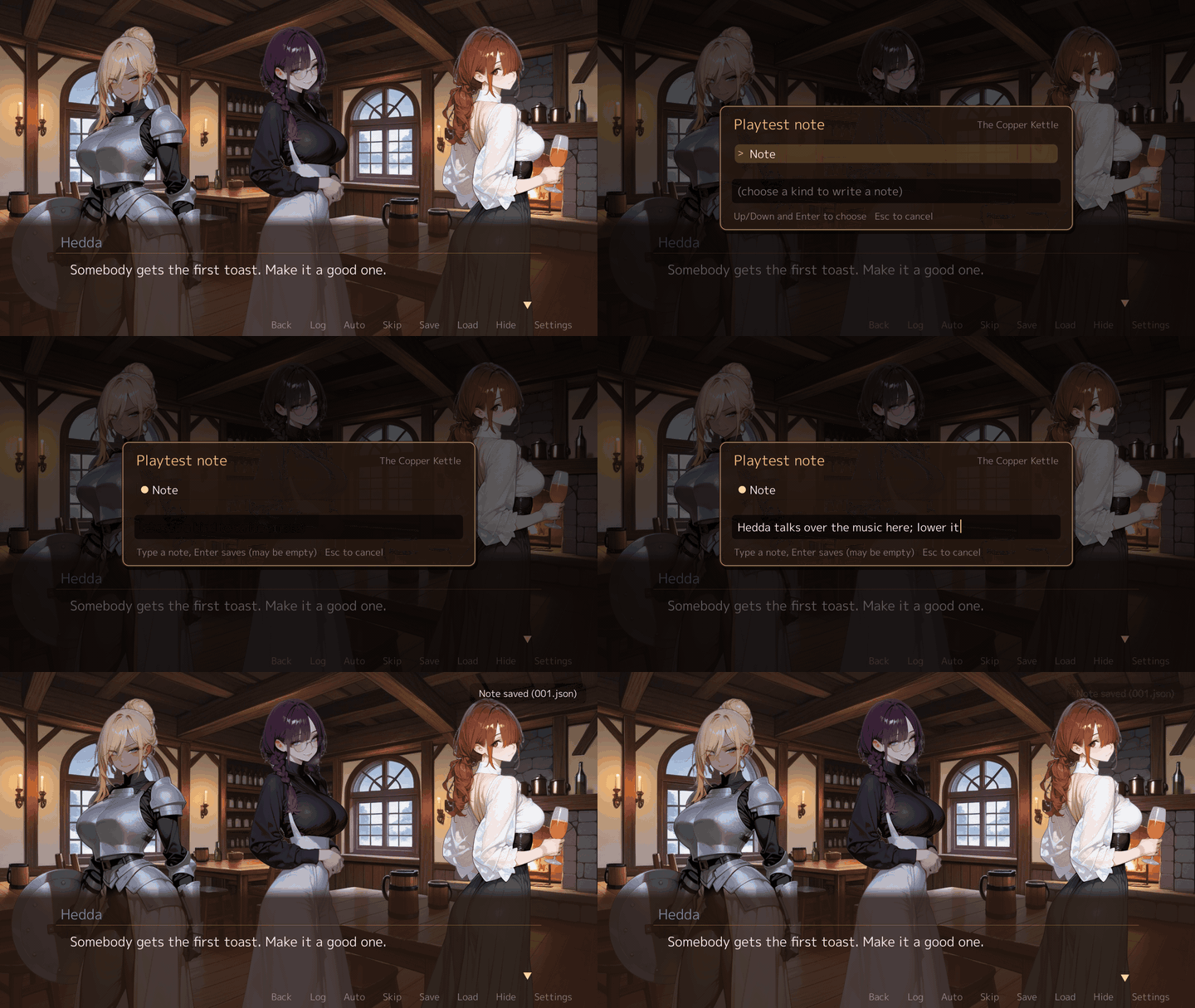
F9 opens a note on the current moment. Pick a kind, type a short comment (it may be empty) and press Enter. The game writes notes/<date>/<number>.png (the screen), .json (the place, the line, the party, your comment) and .save (the state).
Collect a session’s notes into one page:
gozen play notes notes -o notes-html
To come back to a note, start the game from it. In an event, the game begins the event again and reads on to the same line; in a battle, it starts the same battle from the state at the note:
go run . --dev --dir game --from-memo notes/2026-10-19/001.json
So a round is: play, press F9 on each problem, read the notes page, fix the YAML, --from-memo to the note, F5 until it reads right.
Start anywhere #
go run . --dev --start cave --level 8 --battle cave_boss   # straight into a fight
go run . --dev --start town --party hero,mage --gold 500 --items potion=3
go run . --dev --start cave --flags met_elder,var.trust=3 --calm   # no random battles
go run . --dev --event elder_talk --line 4                 # an event, from its 4th line
--floor N starts on a floor of a generated dungeon. --scene opens a gallery scene; --picture FILE stops at the line shown over a picture; --answers 0,1 answers the questions on the way.
Autoplay #
go run . --dev --mute --autoplay 60 --speed 8 --trace run.jsonl --report run.txt
The game plays by itself for 60 seconds at eight times speed: it walks into the dungeon reachable from town, fights, goes back after --auto-floors floors to rest and shop, and goes down again. It needs a dungeon the party can reach from the starting town. --shot-every 5 takes a screenshot every five seconds into --shots. Use it to see how a long dive feels, and how the numbers move, without playing it.
For a dive without a window, gozen sim dive does the same with the rules alone.
Trace and replay #
--trace FILE records what happens as JSON Lines: every line of dialogue, menu, battle, picture, song, state change and input, with the time. Read it with gozen play trace:
gozen play trace run.jsonl --only say,battle --from 10 --to 60
gozen play trace run.jsonl --check    # standing pictures and music that went wrong
00:00.02 scene      field  @camp
00:00.02 state      0G @camp  Walker Lv1 30/30 5/5
00:00.33 menu       [Talk: Courier] | Practice | Save journey | Rest | → Explore chamber | ...
A trace can be played again. --replay checks that the game goes the same way and reports the first line that differs, with its tick:
go run . --dev --replay run.jsonl
go run . --dev --replay run.jsonl --replay-battle 3        # only the third battle
go run . --dev --replay run.jsonl --until 4200 --shots s   # stop at a tick and save the screen
Fix a bug, replay the trace that showed it, and see the difference.
Scripts and screenshots #
A script drives the game with button presses and takes screenshots. It needs --shots:
wait 80
press ok
wait 30
shot field
quit
go run . --dev --mute --seed 7 --start camp --script script.txt --shots captures
wait N waits N ticks (60 a second), press BUTTON presses ok, cancel, up, down, left, right and the other buttons, shot NAME writes NAME.png, and quit ends the run. In a campaign, order ID [GENERAL|-] [TARGET] gives an order and end_turn ends the turn; GENERAL may be several, the first leading, each with its tactic (corin:guard,hilde), and then the sortie screen is not shown; the trace writes order, sortie, clash and end_turn lines. --record out.mp4 writes a video of a scripted, automatic or replayed run (needs ffmpeg). On Linux, wrap any of these in xvfb-run -a to run without a screen.
To take a list of screenshots in one go, each from a fresh start, use gozen play shots.
All game options #
Run your game with --help to see the same list in the terminal.
| Group | Options |
|---|---|
| Game | --dir DIR, --seed SEED, --mute, --fullscreen, --window SCALE, --save-dir DIR, --dev |
Test play (--dev) | --start LOCATION, --battle TROOP, --party IDS, --level LEVEL, --flags FLAGS, --gold GOLD, --items ITEMS, --floor FLOOR, --calm, --scene SCENE, --event EVENT, --line LINE, --picture FILE, --answers ANSWERS |
Autoplay (--dev) | --autoplay SECONDS, --report FILE, --shot-every SECONDS, --auto-floors FLOORS, --speed TIMES |
Scripts and records (--dev) | --script FILE, --shots DIR, --record FILE, --trace FILE, --trace-shots, --replay FILE, --replay-battle N, --until TICK |
Notes and review (--dev) | --memos DIR, --from-memo FILE, --allow-legacy-save, --gallery-all, --review, --review-log FILE, --review-sources FILE, --build-info, --external-input |
Options follow the GNU style: --seed 7 and --seed=7 both work, and a single-dash long option such as -dev is rejected.